AI Guides
What Is iLab GPT Conjure? A Beginner‑Friendly Guide to kadevin/ilab-gpt-conjure
iLab GPT Conjure is a browser‑based WebUI for generating images with GPT‑image‑2, offering prompt templates, a reference‑image gallery, history management, CLI automation and OpenAI‑compatible API integration.
💡Key Takeaways
- iLab GPT Conjure is a browser‑based WebUI for generating images with GPT‑image‑2, offering prompt templates, a reference‑image gallery, history management, CLI automation and OpenAI‑compatible API integration.
Repository: https://github.com/kadevin/ilab-gpt-conjure
Topic: GPT-image-2, AI image WebUI, prompt templates, gallery, image editing, OpenAI-compatible API
Audience: AI image creators, thumbnail/poster designers, people who need local image workflows, and developers who want image generation automation
Level: beginner-friendly, with minimal jargon
Image format: screenshot from the repository, no base64 embedding
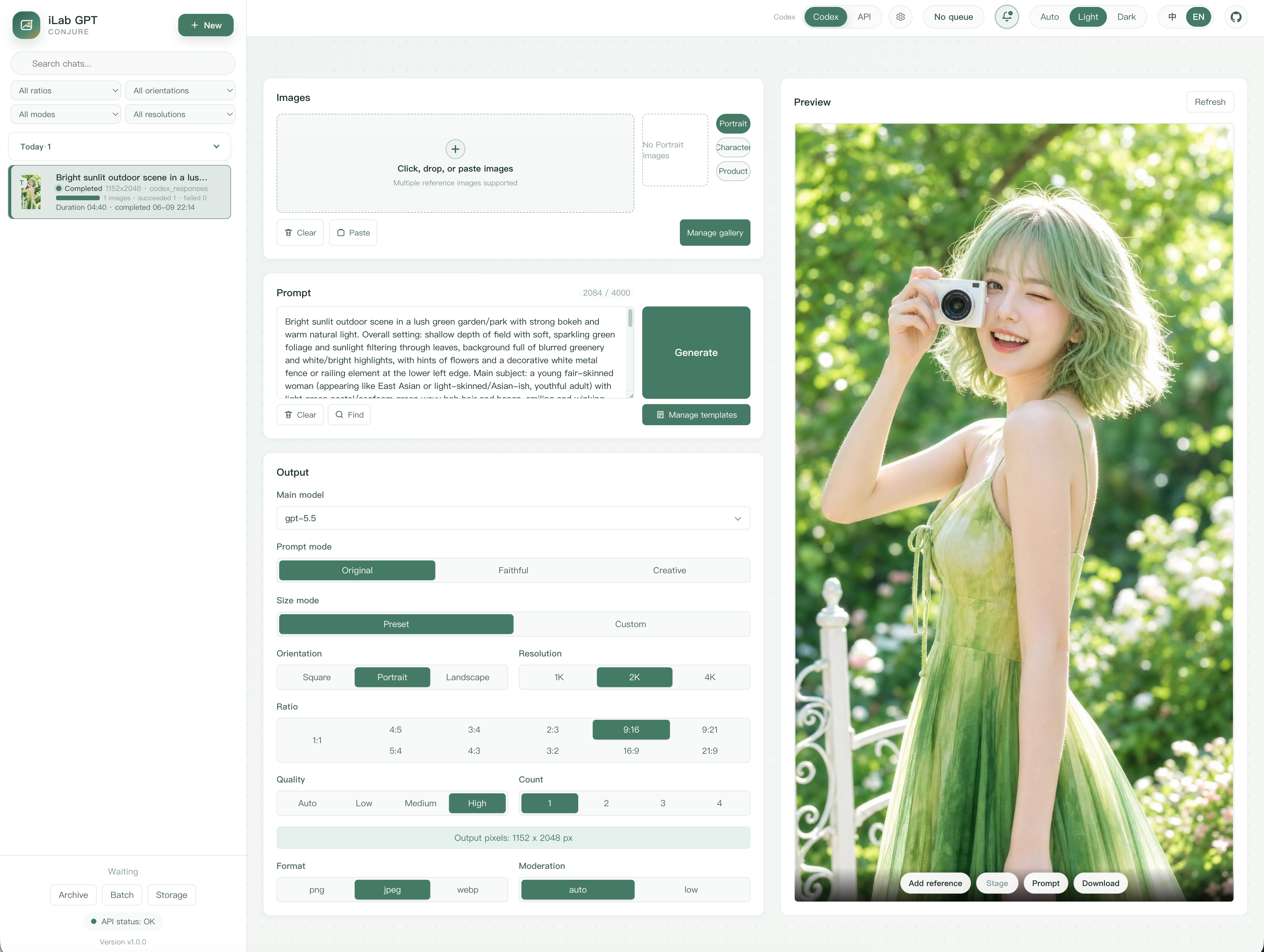
1. What is iLab GPT Conjure in simple words?
iLab GPT Conjure is a WebUI for generating images with GPT-image-2.
Simple explanation:
iLab GPT Conjure = a browser-based workbench for writing prompts, adding reference images, generating AI images, managing history, and downloading results.
If you use an image generation API directly, you usually need to write code or run commands. iLab GPT Conjure turns that workflow into a more visual interface.
Think of it as a local AI image studio:
Example
2. What problem does this repository solve?
AI image generation often becomes messy when you use it heavily.
Common problems:
Example
iLab GPT Conjure is built to help with these problems.
It includes:
Example
3. What does “WebUI workbench” mean?
The README calls it an AI image generation WebUI workbench.
Simple meaning:
WebUI = an interface that runs in the browser.
Workbench = a workspace with multiple helpful tools.
So iLab GPT Conjure is not just one prompt box. It is a workspace for managing the full image generation process.
Example:
Example
4. How can you use iLab GPT Conjure?
The repository supports two main usage modes.
Mode 1: WebUI
This is the best option for most users.
You open the local browser interface, write a prompt, add reference images, configure the image settings, and start generation.
Mode 2: CLI
CLI means command-line interface.
The README gives an example like:
Example
This is useful for automation, batch generation, or scripts.
5. Two connection modes: API and local OAuth
This is the most important part to understand.
The README says the project supports:
Example
OpenAI-compatible API
This is the recommended mode for:
Example
You configure:
Example
Simple meaning:
Example
Codex / ChatGPT OAuth local mode
This mode can reuse a local Codex / ChatGPT OAuth session to call an internal ChatGPT backend endpoint.
The README clearly warns that:
Example
So for public writing, the safe message is:
Example
6. Main features
Text-to-image
You write a text prompt describing the image you want.
Example:
Example
Then the system sends the request to an image model.
Reference-image generation
You can add reference images.
Examples:
Example
This helps when you want consistent characters, products, or styles.
Image editing
The README says the project supports image editing workflows, so it is not only for creating images from scratch.
Concurrent tasks
The project supports concurrent tasks and local queue state.
Simple meaning:
Example
This is useful when generating many variations.
History page
The repository includes an independent /history page with pagination, search, filters, grid/list views, and lazy detail loading.
For real users, history matters because image generation often requires many attempts before choosing the best result.
Public gallery
The gallery is a local reusable reference library.
You can store:
Example
Then you can insert them later without uploading again.
Prompt templates
Prompt templates are reusable long prompt structures.
Examples:
Example
Templates save time and make outputs more consistent.
Prompt chips
The prompt editor supports three types of chips:
Example
Simple meaning:
Example
These make prompts more organized and reusable.
7. What are portable packages?
The README says the project provides portable packages.
Simple meaning:
Example
The README describes these packages as a ComfyUI-style unzip-and-run experience.
Portable packages include bundled CPython, dependencies, application source, license files, and a local data/ directory for settings, gallery files, inputs, outputs, task databases, and logs.
Important reminder:
Example
8. Manual installation
According to the README:
git clone https://github.com/kadevin/ilab-gpt-conjure.git
cd ilab-gpt-conjure
python3 -m venv .venv
.venv/bin/python -m pip install -r requirements-webui.txt
Manual WebUI start:
Example
Then open:
Example
Requirements include:
Python 3.11 or newer
requirements-webui.txt dependencies
frontend tooling if editing TypeScript or CSS
9. Who should use iLab GPT Conjure?
Frequent AI image creators
If you generate many images and need history, references, and templates, this WebUI can organize your workflow.
Thumbnail and poster designers
You can save prompt templates, brand colors, character references, and product references.
Product image creators
The gallery can store product references, and templates can keep a consistent visual style.
Character or visual concept creators
If you reuse the same character or style, the gallery and reference workflow are useful.
Developers who need automation
The CLI can be used in scripts or internal pipelines.
10. Who may not need this repository?
You may not need iLab GPT Conjure if:
Example
For very simple needs, an existing hosted image tool may be enough.
11. Strengths
Example
12. Things to be careful about
Do not use local OAuth mode for production
The README says local OAuth mode is only for personal local workflows and is not an officially recommended OpenAI API integration path.
Do not commit sensitive data
Do not commit:
Example
AGPLv3 matters for network services
The project uses GNU AGPLv3. The README says that if you modify the software and make it available to users over a network, you must make the corresponding source code available under the same license.
macOS portable packages are unsigned
The README says macOS packages are unsigned portable zips, not signed or notarized apps. macOS may require right-click Open or quarantine removal.
The software license does not grant rights to model/API services
The README states that the license applies to the project code. It does not grant rights to the project name, logo, personal assets, API credentials, user prompts, input images, output images, or the model/API services used with it.
13. Simple comparison with ComfyUI
The README says portable packages are intended for a ComfyUI-style unzip-and-run experience.
But the tools are not the same.
Simple distinction:
Example
If you need deep node workflow control, ComfyUI may fit better. If you need a tidy GPT-image-2 workbench, iLab GPT Conjure is worth trying.
14. Example workflow for thumbnails
Example
15. Example workflow for product images
Example
16. How beginners should read the repository
Do not read the whole repository from top to bottom.
Suggested path:
Example
17. Conclusion
iLab GPT Conjure is a WebUI workbench for GPT-image-2. It is useful for people who want a more organized image generation workflow with reference images, gallery, prompt templates, history, concurrent tasks, and CLI automation.
Shortest explanation:
iLab GPT Conjure = a local GPT-image-2 image studio with WebUI, gallery, prompt templates, history, and API-compatible mode.
Key reminders:
Example
SEO title suggestions
- What Is iLab GPT Conjure? Beginner-Friendly Guide to kadevin/ilab-gpt-conjure
- Understanding iLab GPT Conjure: GPT-image-2 WebUI With Gallery and Prompt Templates
- What Is iLab GPT Conjure Used For? WebUI, CLI, History, and Image Workflows
- GPT-image-2 WebUI Workbench: iLab GPT Conjure Explained for Beginners
SEO meta description
A beginner-friendly guide to kadevin/ilab-gpt-conjure: what iLab GPT Conjure is, how it helps generate GPT-image-2 images, WebUI, CLI, gallery, prompt chips, templates, history, portable packages, API mode, local OAuth mode, strengths, limitations, and AGPLv3 license notes.
References
- GitHub — kadevin/ilab-gpt-conjure: https://github.com/kadevin/ilab-gpt-conjure
- README English — iLab GPT Conjure: https://github.com/kadevin/ilab-gpt-conjure/blob/main/README.en.md
- README Chinese — iLab GPT Conjure: https://github.com/kadevin/ilab-gpt-conjure/blob/main/README.md
- GitHub Releases — iLab GPT Conjure: https://github.com/kadevin/ilab-gpt-conjure/releases
- Release v0.3.6: https://github.com/kadevin/ilab-gpt-conjure/releases/tag/v0.3.6
Written by PixelRouter Editorial Team
We publish deep, authoritative guides on AI infrastructure, API gateway security, cloud financial management, and system optimizations for developers.
FAQ
What is iLab GPT Conjure?
iLab GPT Conjure is a browser‑based WebUI workbench for generating images with GPT‑image‑2. It provides a visual interface for writing prompts, adding reference images, configuring image settings, reviewing results, and downloading the best outputs.
What connection modes does iLab GPT Conjure support?
The project supports two modes: an OpenAI‑compatible API mode for stable, production‑grade integrations, and a local Codex/ChatGPT OAuth mode intended only for personal, local workflows and not recommended for public or team use.
How can I install iLab GPT Conjure manually?
Clone the repository, create a Python 3.11+ virtual environment, install the web UI requirements, and start the server with uvicorn. Example steps: ``` git clone https://github.com/kadevin/ilab-gpt-conjure.git cd ilab-gpt-conjure python3 -m venv .venv .venv/bin/python -m pip install -r requirements-webui.txt .venv/bin/python -m uvicorn codex_image.webui.app:app --host 127.0.0.1 --port 8787 --no-access-log ``` Then open http://127.0.0.1:8787/ in a browser.
What are the main features of the iLab GPT Conjure WebUI?
Key features include text‑to‑image generation, reference‑image gallery, prompt templates and chips, image editing, concurrent task handling, a searchable history page, and portable packages for easy startup.
📂Related posts
AI Guides
AI Coding Agents Are Moving Beyond Code: The Visual Feedback Loop for iOS Development
An accessible analysis of visual feedback loops for iOS coding agents: editing Swift and SwiftUI, building apps, running iOS Simulator, observing the interface, hot reloading changes, attaching feedback to UI elements, and revising code.
AI Guides
What Is blind-watermark? A Beginner-Friendly Guide to guofei9987/blind_watermark
A beginner-friendly guide to guofei9987/blind_watermark: what invisible watermarking is, how DWT–DCT–SVD works, Python and CLI usage, text/image watermark modes, crop and compression robustness, security limitations, privacy considerations, and the MIT License.
AI Guides
What Is Orb.Farm? Browser-Based Aquatic Ecosystem Simulation
Learn what Orb.Farm is, how browser-based aquatic ecosystem simulation works, and what it teaches about algae, daphnia, fish, oxygen, CO₂, and ecological balance.